The Share Sheet is the panel that appears after you tap Apple's Share icon - a square with an upward arrow. It combines suggested people, apps that can receive the current item, and actions such as Copy, Print, or Add to Reading List.
Its contents change because each app decides what it can share. Safari may offer a web address and page details, while Photos offers an image or video. A social app might share a link, text, an image, or only part of a post.
1. Open the Share Sheet
Open the page, photo, file, map location, or other item you want to send somewhere else. Look for the Share icon in the toolbar or an app's overflow menu, then tap it.
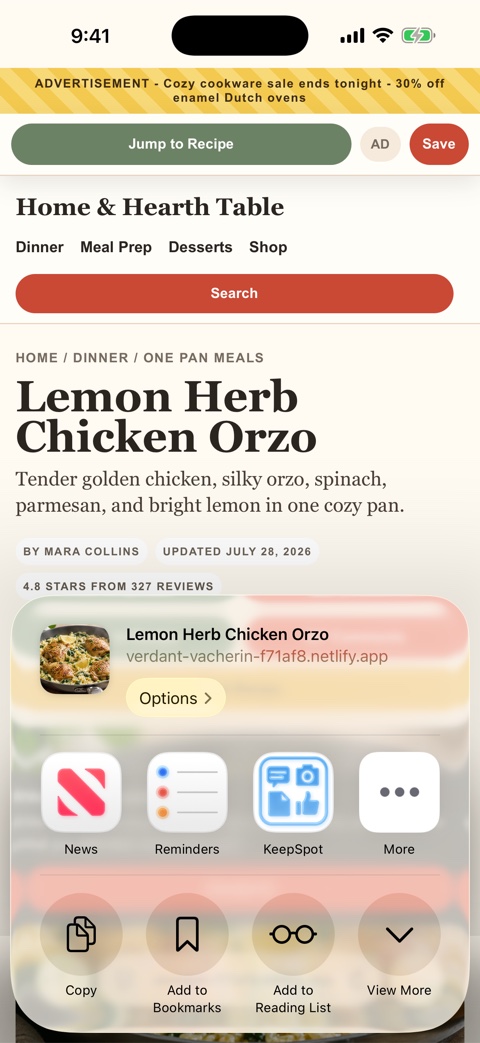
If you do not see the Share icon, try pressing and holding the item or opening the app's menu. Some apps label the command Share, Send, or Share via.
2. Choose a destination or action
The upper app row sends the current item to another app. The lower action list performs a task with it. Tap an app icon to pass the content along, or scroll the action list for options supplied by iOS and the current app.
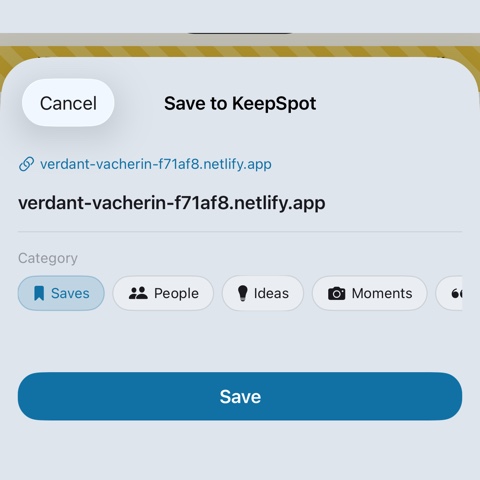
When you choose KeepSpot, a save panel lets you confirm the item and add useful context before it enters the library.
3. Add an app to Favorites
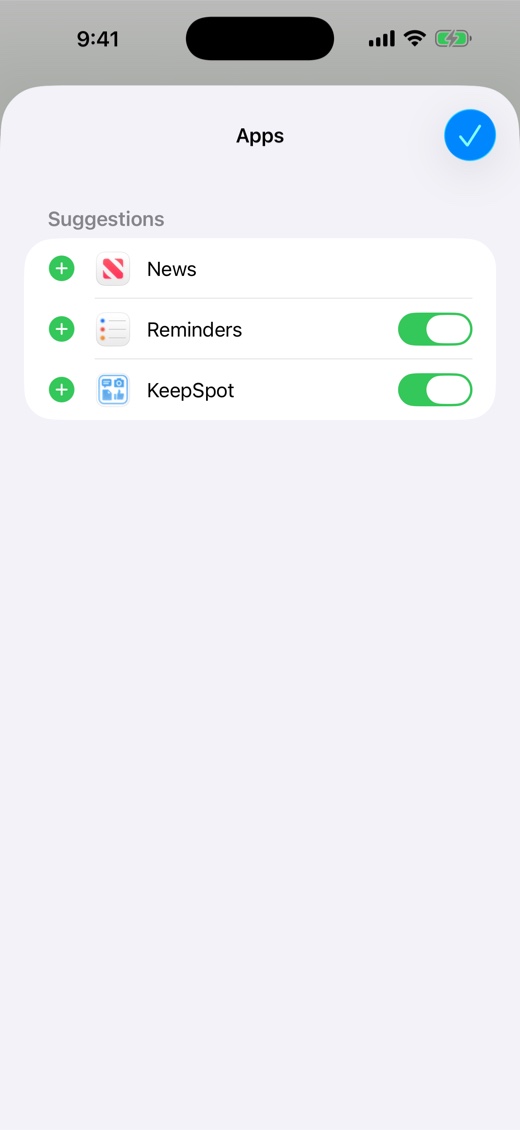
If an installed app is compatible with the current item but missing from the first row, scroll the app row to the end and tap More. Tap Edit, then add the app to Favorites. You can drag favorite apps into the order that suits you.
- Open the Share Sheet on a compatible page or item.
- Swipe the app row left and tap More.
- Tap Edit in the upper-right corner.
- Add KeepSpot or another destination to Favorites.
- Drag the handle to change its position, then tap Done.
Why an app or action may be missing
The Share Sheet is contextual. An app can appear for a web link but not for an unsupported file type, and the same social app may expose different content for a public post, private message, or media viewer.
- Try another view. Open the original post, page, image, or file before tapping Share.
- Check More. The destination may be installed but not favorited.
- Update both apps. Share extensions can change with app and iOS updates.
- Use Copy Link when available. Paste the URL into the destination if direct sharing is unavailable.
- Expect private content limits. A login-protected app or page may not provide enough information to another app.
A low-friction saving habit
Put the destination you use most near the start of Favorites. When saving to KeepSpot, add a collection or note only when it improves retrieval. The best workflow is the one quick enough to use and clear enough to trust later.
After saving, open the item once if it is important. Confirm that the title, source, attachment, or extracted content arrived as expected before closing or deleting the original.